Admin console
The Admin Console is a runtime overlay that lets developers and QA engineers run commands against a live Beamable game session without stopping play mode or redeploying. It renders a window over the scene and accepts typed commands, with autocomplete and history navigation built in.
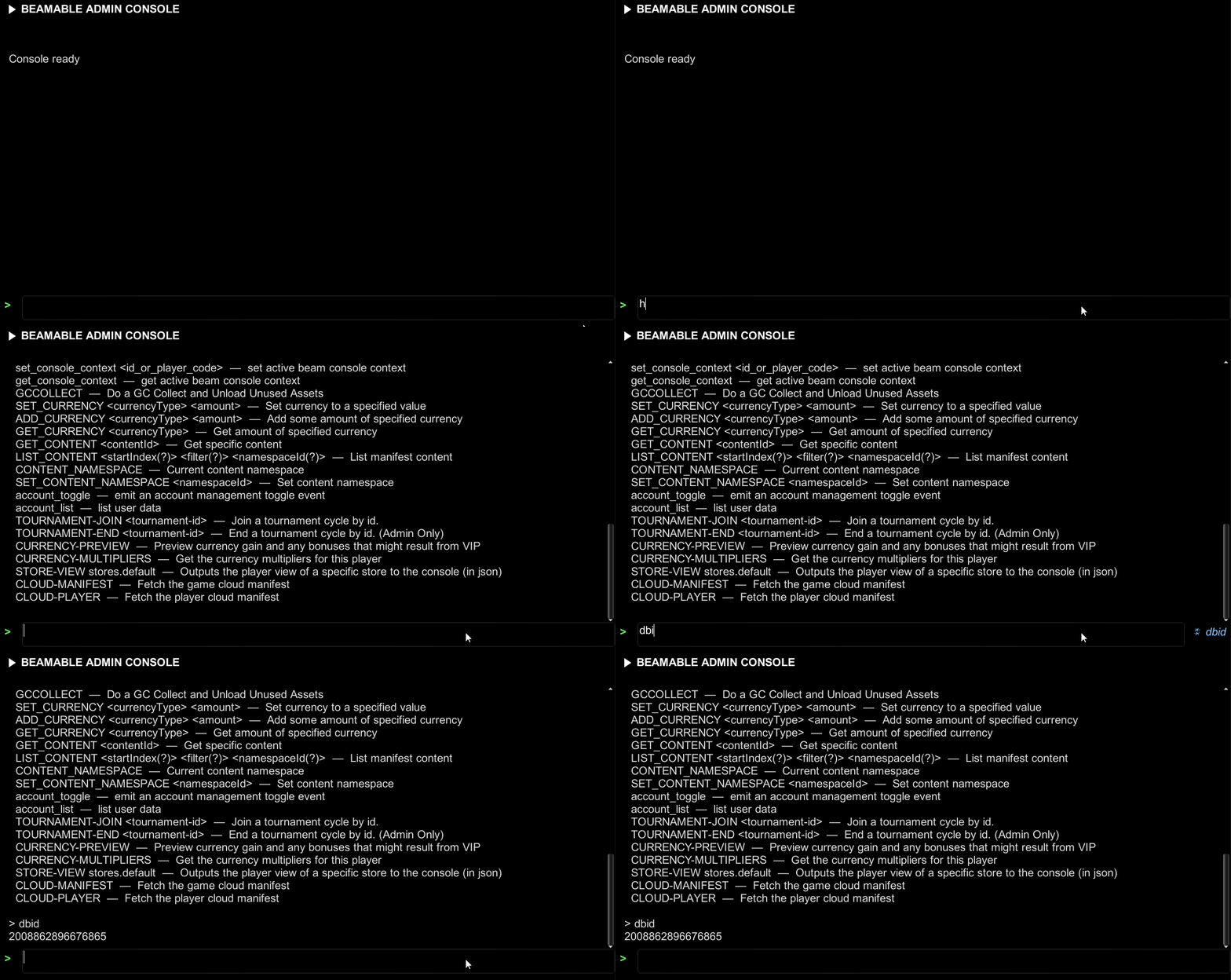
As of this version, the Admin Console is a built-in integration managed directly by the Beamable runtime — no manual prefab setup is required. The previous prefab-based Admin Console is deprecated and will be removed in a future release. Migrate to the built-in integration described on this page.
Deprecated: prefab-based Admin Console
The old AdminFlow prefab approach is deprecated. Remove any existing AdminFlow prefabs from your scenes to start using the built-in integration.
Activating the console
The console can be opened and closed several ways depending on the target platform and input configuration.
| Method | Details |
|---|---|
Backtick / grave key (`) |
Default keyboard shortcut on all platforms |
| 3-finger swipe | Touch platforms — drag three fingers while they are all on screen |
ConsoleConfiguration
ConsoleConfiguration is a Beamable module configuration ScriptableObject found alongside the other Beamable config assets in your project (under Beamable → Resources → ConsoleConfiguration in the Project window).
| Field | Type | Default | Description |
|---|---|---|---|
UI Size |
float |
1.5 |
Configure the size of the UI |
EnableAdminConsole |
bool |
true |
Enables the console overlay in non-editor builds for all players, bypassing the cli:console scope requirement |
Deprecated fields
ForceEnabled and ToggleAction are still present in the asset but only apply to the old prefab-based Admin Console. They have no effect on the built-in integration and can be ignored.
Tip
Set EnableAdminConsole to false before shipping a player-facing build to ensure the console cannot be opened without the cli:console scope.
Access control
| Environment | Behavior |
|---|---|
| Unity Editor | Always enabled |
| Runtime build | Requires ConsoleConfiguration.EnableAdminConsole = true or the logged-in player must have the cli:console scope |
Players without the cli:console scope will not be able to open the console even if they trigger the correct gesture or key.
Keyboard shortcuts
Once the console overlay is open, the following shortcuts are active:
| Key | Action |
|---|---|
Enter / Return |
Submit the current input |
Tab |
Accept the current autocomplete suggestion; press again to cycle through matches |
↑ / ↓ |
Navigate command history |
Running commands
Type a command and press Enter. The console echoes the command prefixed with > and runs it. Status messages appear in the Admin Console output, but a command's detailed result may be written to the Unity Console log instead, depending on how the command logs.
Example:
Listing all Commands
Use the help command to list every registered command and its usage:
Logging to the console
Any script can write lines to the console output by calling Log on the singleton instance:
API reference
Instance
Singleton reference set during InitializeConsole. Use this to call Log, check state, or subscribe to events from anywhere in your code without holding a direct reference to the component.
IsActive
true while the console overlay is visible on screen. Use this to pause game input or suppress UI interactions that should not fire while the console is open.
IsInitialized
true after InitializeConsole has completed successfully. Calls to Log or Instance before initialization are safe but will have no visible effect until the console is ready.
OnLogLine
Fired each time a line is appended to the console output, whether from a command result, a Log call, or internal console messages. Subscribe to forward output to an external logger or display it in a custom UI: