Player account manager sample
The Player Account Manager Sample demonstrates Beamable's identity system — a service that lets players create accounts, attach email and password credentials, and manage account aliases and avatars.
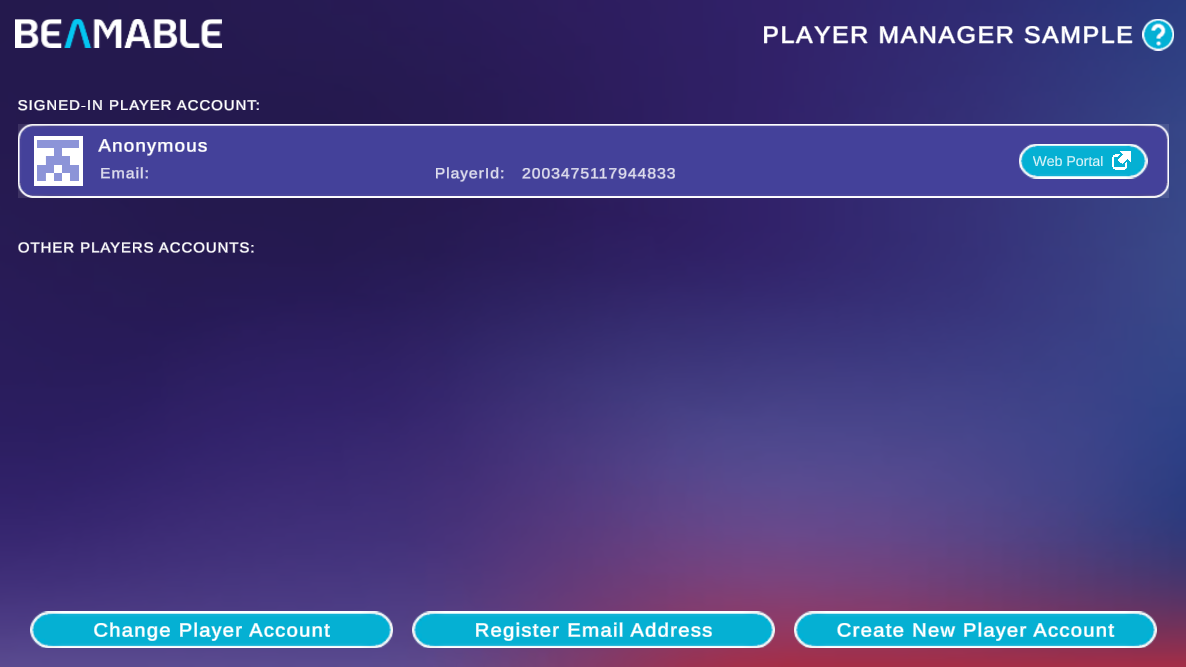
There are no prerequisites for this sample. It shows you how to:
- View the currently signed-in player account, including name, email, and Player Id
- Register an email address and password for an anonymous account
- Create additional player accounts within the same session
- Switch between multiple player accounts
Sample overview
When you open the scene, the Signed-In Player Account section displays the active account card. Each card shows the player's avatar, display name, email (if registered), Player Id, and a Web Portal button that opens the player's record directly in https://portal.beamable.com.
The Other Players Accounts section lists any additional accounts created during the session. Click a card there to switch the active account.
Three actions are available at the bottom of the screen:
| Button | Description |
|---|---|
| Change Player Account | Switches the signed-in account to one of the other player accounts listed |
| Register Email Address | Attaches an email and password to the current anonymous account, converting it to a registered account |
| Create New Player Account | Creates a new anonymous player account and adds it to the Other Players Accounts list |
Read the SDK Docs
Learn about credential attachment, account switching, and alias management in the Username / Password reference.
Visit Portal
Go to https://portal.beamable.com to manage player accounts from the developer side. Use the Web Portal button on any account card to jump directly to that player's record.