Inventory sample
The Inventory Sample demonstrates Beamable's Inventory system — a service that manages owned items and currencies per player.
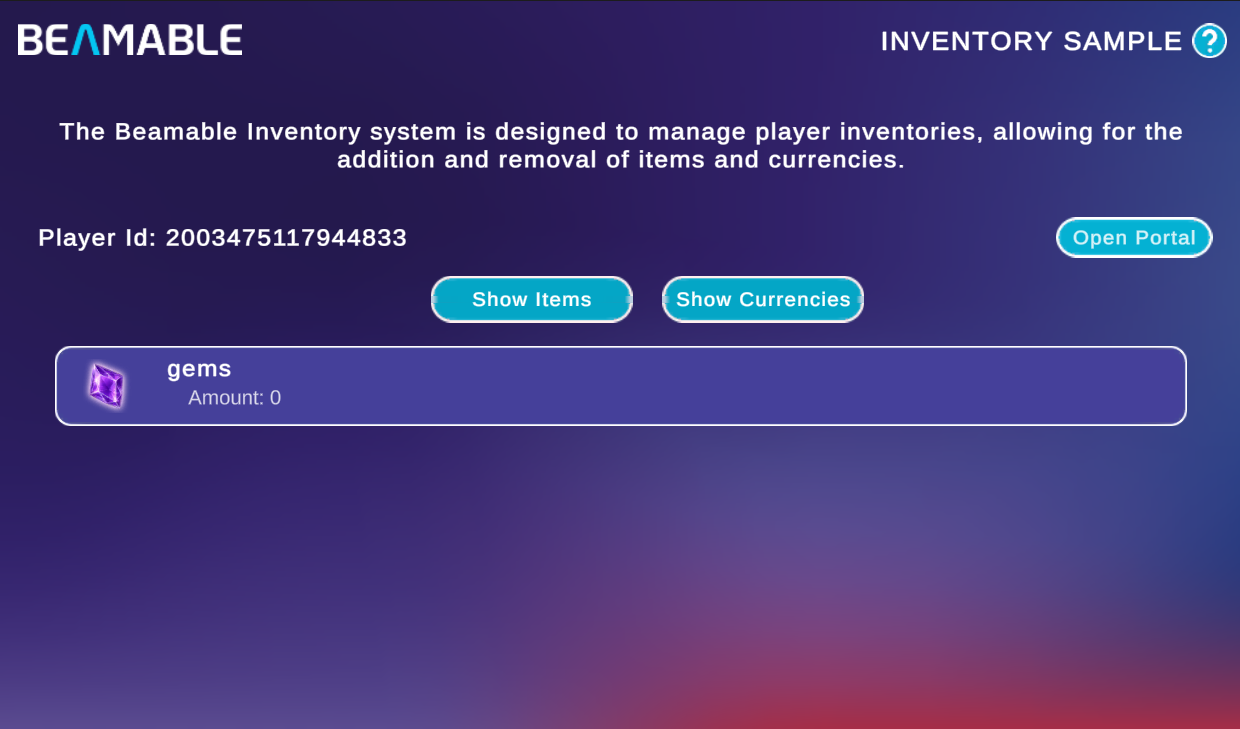
This sample shows you how to:
- Collect and display items and currencies from the player's inventory
Prerequisites
The Inventory system is content-driven. Before entering Playmode, you must create at least one item in the Content Manager and grant it to the player in Portal.
1. Create an item in the Content Manager
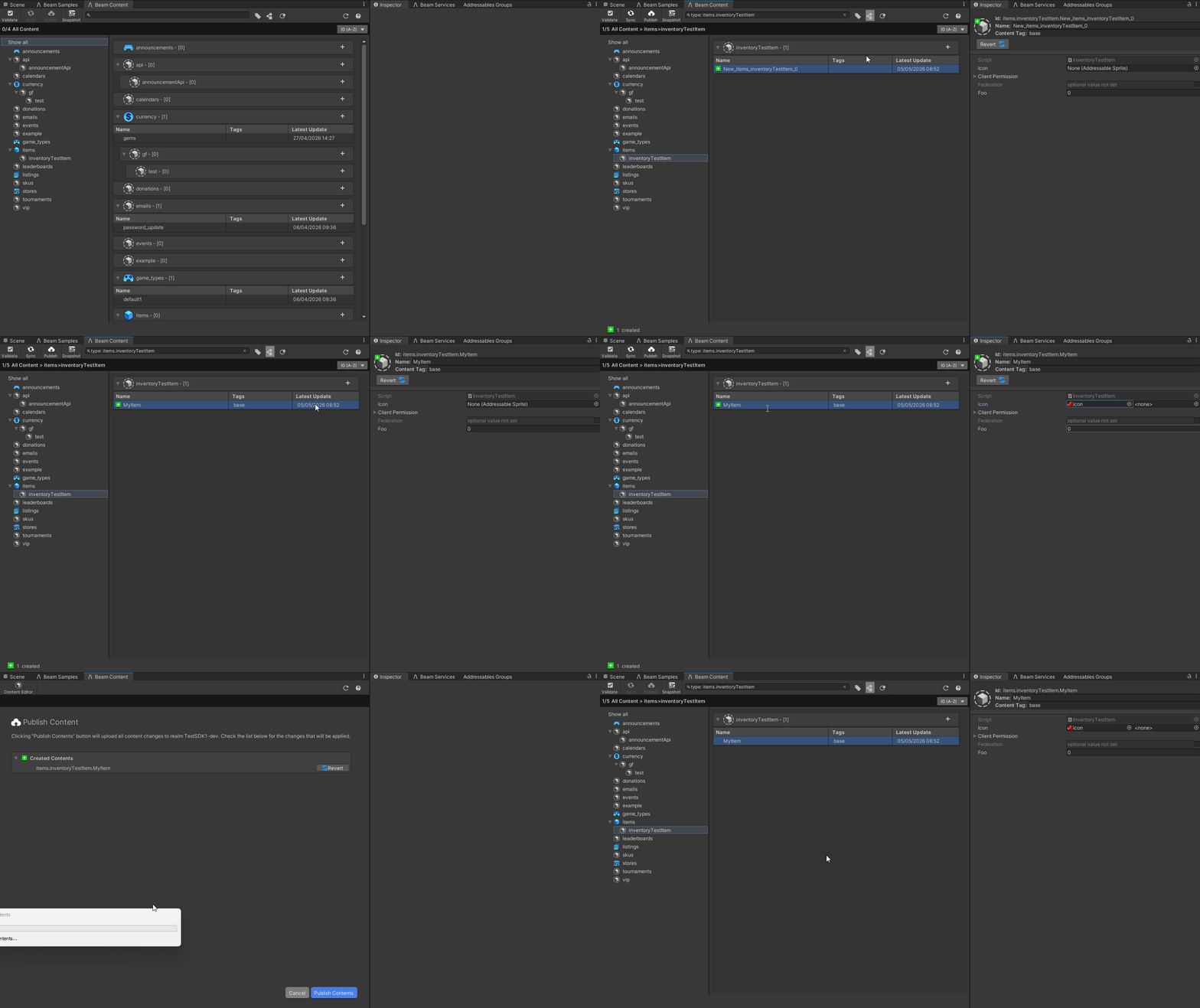
- Open the Content Manager (Beamable → Open Beam Content)
- Click the + button next to inventoryTestItem type to add a new entry of this type
- Give the item a name (for example,
MyItem) — the full content Id is generated automatically asitems.inventoryTestItem.MyItem - Add a Icon if you wish. Icons are displayed in the inventory list
- Click Publish to push the new content to your realm
Pre-existing content type
The inventoryTestItem content group, based on the InventoryTestItem content type, is already included in the sample project. You only need to add entries within that group.
2. Grant the item to a player in Portal
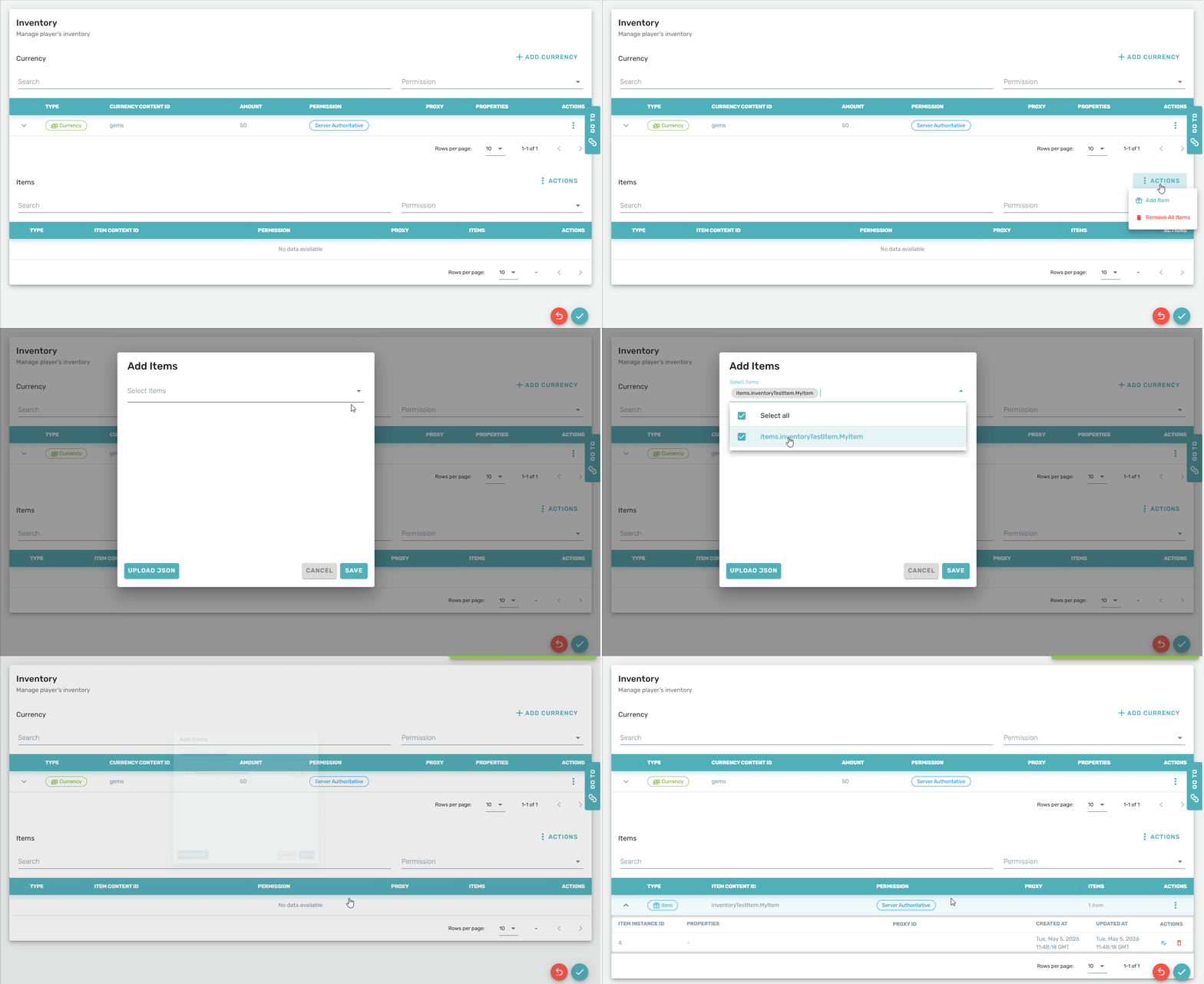
- Enter Playmode and click Open Portal — this takes you directly to the player's Inventory page on the portal
- Click Actions → Add Item in the Items section
- Choose the content item you published in the previous step and confirm
Publish before granting
The item must be published from the Content Manager before it appears in Portal's item picker. Unpublished content is unavailable on the server.
Try it with currencies too
The sample includes a gems currency you can experiment with. On the player's Inventory page in Portal, click + Add Currency in the Currency section, select gems, set an amount, and confirm. Switch to Show Currencies in the sample to see the balance reflected.
Sample overview
When you open the scene, the home screen displays your Player Id and an Open Portal button that takes you directly to your player record on the Portal.
Use the two toggle buttons to switch the list view:
| Button | Description |
|---|---|
| Show Items | Lists all inventory items currently owned by the player, showing each item's display name and content Id |
| Show Currencies | Lists all currency balances currently held by the player |
After granting an item or currency through Portal, refresh the list changing the tab to see the updated inventory reflected in the sample.
Read the SDK Docs
Learn about the full Inventory API — fetching, updating, and transacting items and currencies — in the Inventory Overview reference.
Visit Portal
Go to https://portal.beamable.com to view and edit player inventories from the developer side. Search for a player and open the Inventory tab.