LiveOps sample
This demo showcases how you can use the Beamable Unreal SDK in LiveOps game projects. Particularly, it focuses on the Player Stats, Announcements, and Inventory Systems.
Introduction
Aside from the BeamableCore Plugin, here is what the sample contains:
BEAMPROJ_LiveOpsDemoUnreal Plugin.: Contains the UE implementation for the sample's client. The core code is insideLiveOpsDemoMainMenu.hand part of the implementation is done through BPs inside the folderUI_BPsfolder of theBEAMPROJ_LiveOpsDemoprojectMicroservice/LiveOpsDemoMicroservice: Microservice containing code that is used by the sample for various inventory and stat related things
To set up this sample you will need a Beamable Account and a Realm. To configure the repo for the sample run dotnet beam unreal select-sample BEAMPROJ_LiveOpsDemo.
Setting up the project
To set up an organization and realm to run this sample, follow the steps below.
- Go to the Beamable Portal and create a new Beamable realm called
liveops-demo - Compile and open the
BeamableUnrealeditor project - Sign into your Beamable account and go to the
liveops-demorealm- Optionally you can hit
Apply to Buildafter the realm change is done
- Optionally you can hit
- Set up the content:
- First, run the command
dotnet beam content restore --pid DE_1816044586323024 --name LastPublished-globalto bring all the content from the sample to your current realm - Open the
Contentwindow - Ensure there is an
itemcontent with the name"sample_item" - Ensure there are 2
currencycontents with names"gems"and"coins" - Click
Publishto publish those new contents to the realm - See the Content System documentation
- First, run the command
- Set up the Announcements
- Open the Beamable Portal
- Choose
liveops-demorealm from Beamable Portal - Go to
Communicate->Campaigns - Click on Create Campaign
- Initialize the campaign scheduling, content, and the gifts it provides and save it
1. Make sure the type is
Announcement2. In theContentsection, add a Gift that gives some amount of"coin"to the user. Optionally, you can also gift them an instance of the"sample_item"with a property calledlevelset to13. You can leave the rest as the default
Running the sample in editor
Now you are set up to run the sample.
- Open the Unreal editor
- Go to the
Beamable -> Microservicewindow- You should see the
LiveOpsDemoMSservice there. Select it - Click
Runand wait until you see theService ready for trafficlog line (and the running icon in the Microservice's card to change) - After you are done with the sample, do not forget to come here and stop the service
- You should see the
- Reset PIE Users to clear any existing data
- Go to the
Homewindow - Click on
Reset PIE Users
- Go to the
- Open the
LiveOpsDemoLevel if it is not opened yet- You can find it inside the
BEAMPROJ_LiveOpsDemo Contentfolder - If you cannot see plugin content in your content browser, you can change the settings of the UE
Content Browserto display it
- You can find it inside the
- Play the
LiveOpsDemoin the Editor
Tips and tricks
At runtime, the sample works in the following way:
- Every time you run the demo, it will initialize the player inventory with 3 sample items that have the an item property called
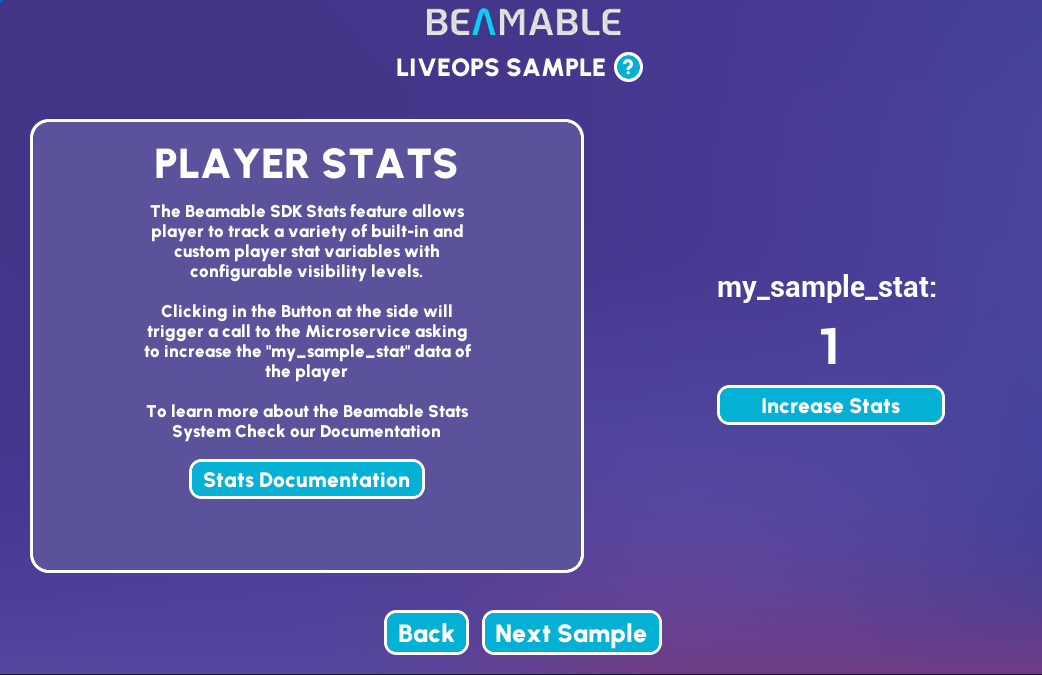
levelset to1 - It will also initialize a Stat
"sample_stat"with the value1- You can also click the button next to the
sample statstat to increment it
- You can also click the button next to the
- In the announcements page, you will find all the announcements you configured via the Portal (provided the schedule you put in makes it active)
- You can click on any announcement
- Doing so shows its content and all the rewards/gifts that could be claimed through this announcement (if any)
- You can claim the gifts inside the announcement by clicking on the claim button
- In the Inventory page, you can see each of the
"sample_item"instances the player has and their level at the right portion of the screen- You should be able to upgrade the item level using the upgrade button
Can I use it as a template?
This sample is not meant to be used as a template directly, however, its components are free for you to copy and use in your own project. Here is what these are:
- The LiveOpsDemoMS Microservice : located inside Microservice/LiveOpsDemoMS
- Beamable code and blueprints inside BEAMPROJ_LiveOpsDemo plugin