Beamball sample
This demo showcases how you can use the Beamable Unreal SDK in a full game project. Particularly it focuses on the Store, Leaderboard, Stats and Matchmaking services.
Introduction
Aside from the BeamableCore Plugin, here is what the sample contains:
BEAMPROJ_BeamballUnreal Plugin.: Contains the UE implementation for the sample client. Key locations in the project are:Plugins/BEAMPROJ_Beamball/Source/BEAMPROJ_Beamball/Public: Public headers for gameplay/runtime systemsPlugins/BEAMPROJ_Beamball/Source/BEAMPROJ_Beamball/Private: C++ implementations for gameplay/runtime systemsPlugins/BEAMPROJ_Beamball/Source/BEAMPROJ_Beamball/Public/PlatformIntegrationsandPrivate/PlatformIntegrations: Platform-specific integrations (Edgegap, EOS, Steam)Plugins/BEAMPROJ_Beamball/Source/BEAMPROJ_BeamballBlueprintNodes: Blueprint node module (Publicheaders andPrivateimplementations)Plugins/BEAMPROJ_Beamball/Content/UI_BPs: Blueprint assets used by the sample UI flow
Microservice/BeamballMsMicroservice: Microservice containing code that is used by the sample for various matchmaking and stats functionality
To set up this sample you will need a Beamable Account and a Realm. To configure the repo for the sample, run dotnet beam unreal select-sample BEAMPROJ_Beamball.
Setting up the project
To set up an organization and realm to run this sample, follow the steps below.
- Go to the Beamable Portal and create a new Beamable realm called
Beamball - Compile and open the
BeamableUnrealeditor project - Sign into your Beamable account and go to the
Beamballrealm- Optionally you can hit
Apply to Buildafter the realm change is done
- Optionally you can hit
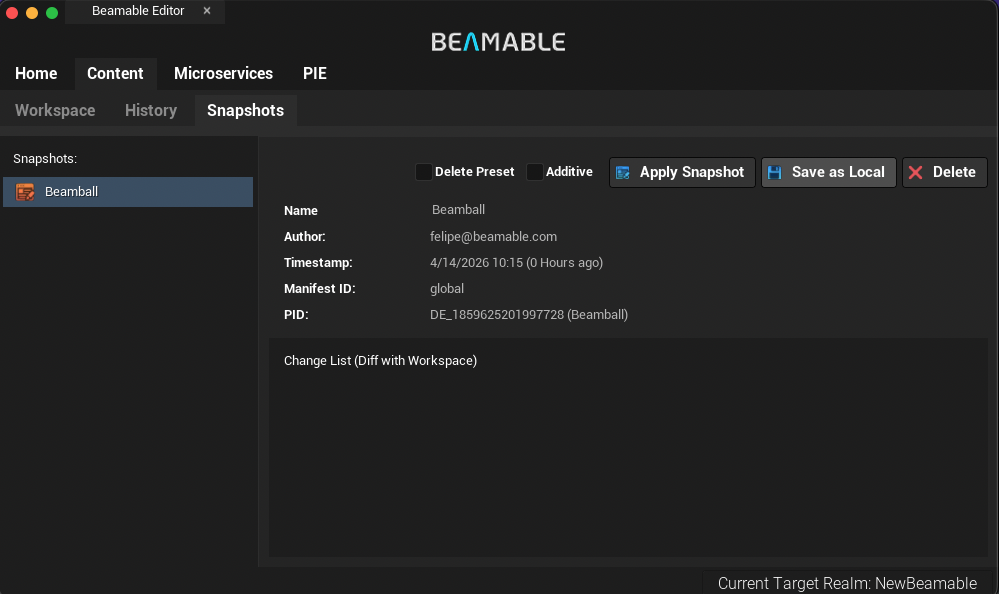
- Set up the content using snapshots
- Open
Beamable -> Content -> Snapshots - Select the
Beamballsnapshot - Click
Apply Snapshot - Publish the applied snapshot content to your realm
- Open
Running the sample in editor
Leveraging the new Beamable PIE Settings, you can run the sample in editor through two entry points: the main menu or the gameplay level.
Running from the main menu
- Open the Unreal editor
- Open the
L_Beamball_MainScreenLevel if it is not opened yet- You can find it inside the
BEAMPROJ_Beamball Contentfolder - If you cannot see plugin content in your content browser, you can change the settings of the UE
Content Browserto display it
- You can find it inside the
- Go to the
Beamable -> Microservicewindow- You should see the
BeamballMSservice there. Select it - Click
Runand wait until you see theService ready for trafficlog line (and the running icon in the Microservice's card to change) - After you are done with the sample, do not forget to come here and stop the service
- You should see the
- You do not need to select any Play Preset, as the
Beamball_MainScreenlevel is the common entry point for the sample. So leave the Play Preset selector toNone - Play the
L_Beamball_MainScreenin the Editor
Running from the gameplay level
- Open the Unreal editor
- Open the
L_Beamball_GameplayLevel if it is not opened yet- You can find it inside the
BEAMPROJ_Beamball Contentfolder - If you cannot see plugin content in your content browser, you can change the settings of the UE
Content Browserto display it
- You can find it inside the
- Go to the
Beamable -> PIE Settings -> Player Managerwindow - Create two players, one with the name
Player1and another with the namePlayer2 - Go to the
Beamable -> PIE Settings -> Play Presetswindow - Create a new Play Preset with the following settings:
- Name:
Beamball Gameplay - Available Maps: Add
L_Beamball_Gameplayto the list - Enable PIE Lobby: Enabled
- Game Type:
"game_types.default" - Add both
Player1andPlayer2to the preset
- Name:
- Select the
Beamball GameplayPlay Preset in the main toolbar - Select
Play as Clientin the Net Mode settings and set theNumber of playersto 2 - Play the
L_Beamball_Gameplayin the Editor
Can I use it as a template?
This sample is not meant to be used as a template directly, however, its components are free for you to copy and use in your own project. Here is what these are:
- The
BeamballMSMicroservice : located inside Microservice/BeamballMS - Beamable code and blueprints inside BEAMPROJ_Beamball plugin