Inventory
The Inventory feature can be managed from the Portal.
Getting started
Follow these steps to manage player inventory:
| Step | Detail |
|---|---|
| 1. Open the Portal | • See Portal for more info |
| 2. Expand "Engage" section on the sidebar | • Click "Players" |
| 3. Navigate to a player's profile page | • Scroll the list or search by playerId, device, etc. |
| 4. Open the player's Inventory page | • Click "Inventory" on the navigation panel |
| 5. Configure the settings | • Enjoy! |
Game Maker user experience
The inventory management interface allows you to view and modify player inventories:
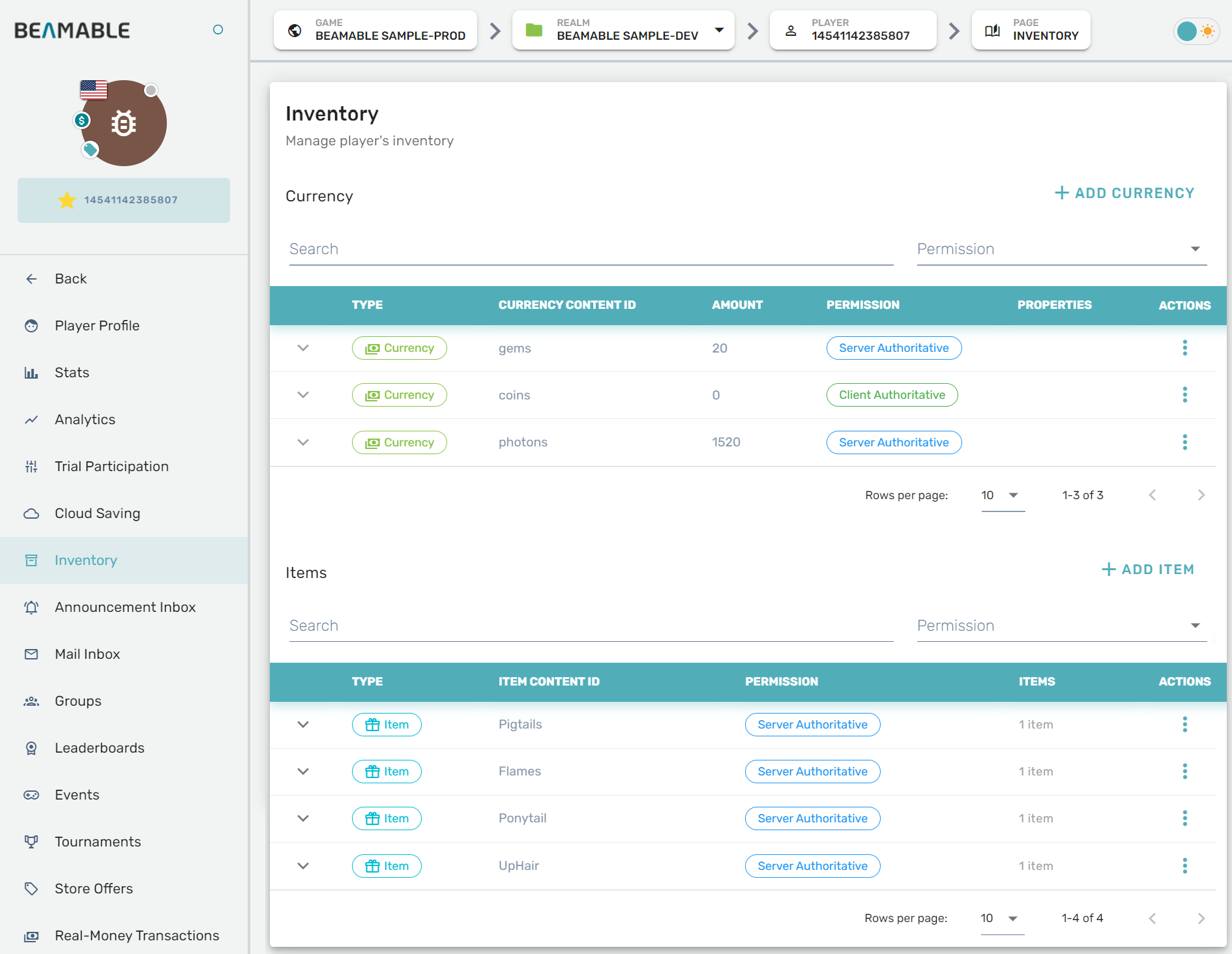
Modifying user currency
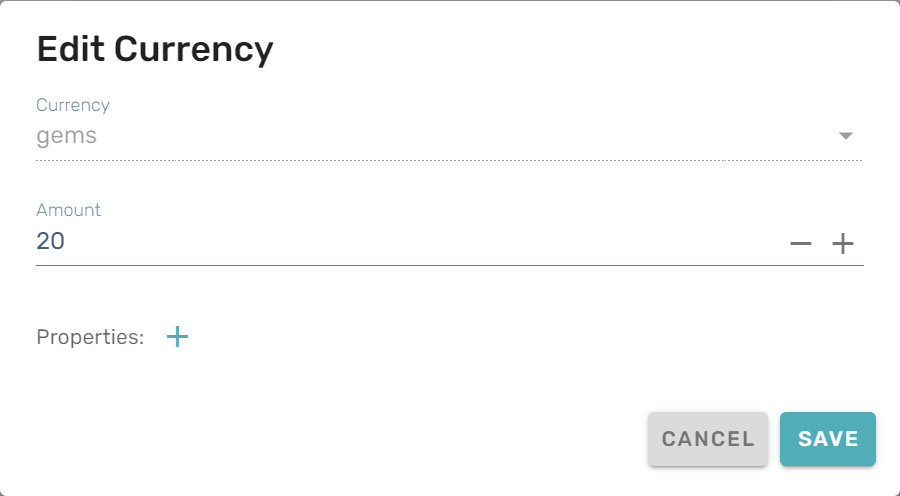
In the Currency section, you can configure how much currency a player has by using the add currency button or by opening the "Edit Currency" menu from the vertical elipses at the end of a currency's row.
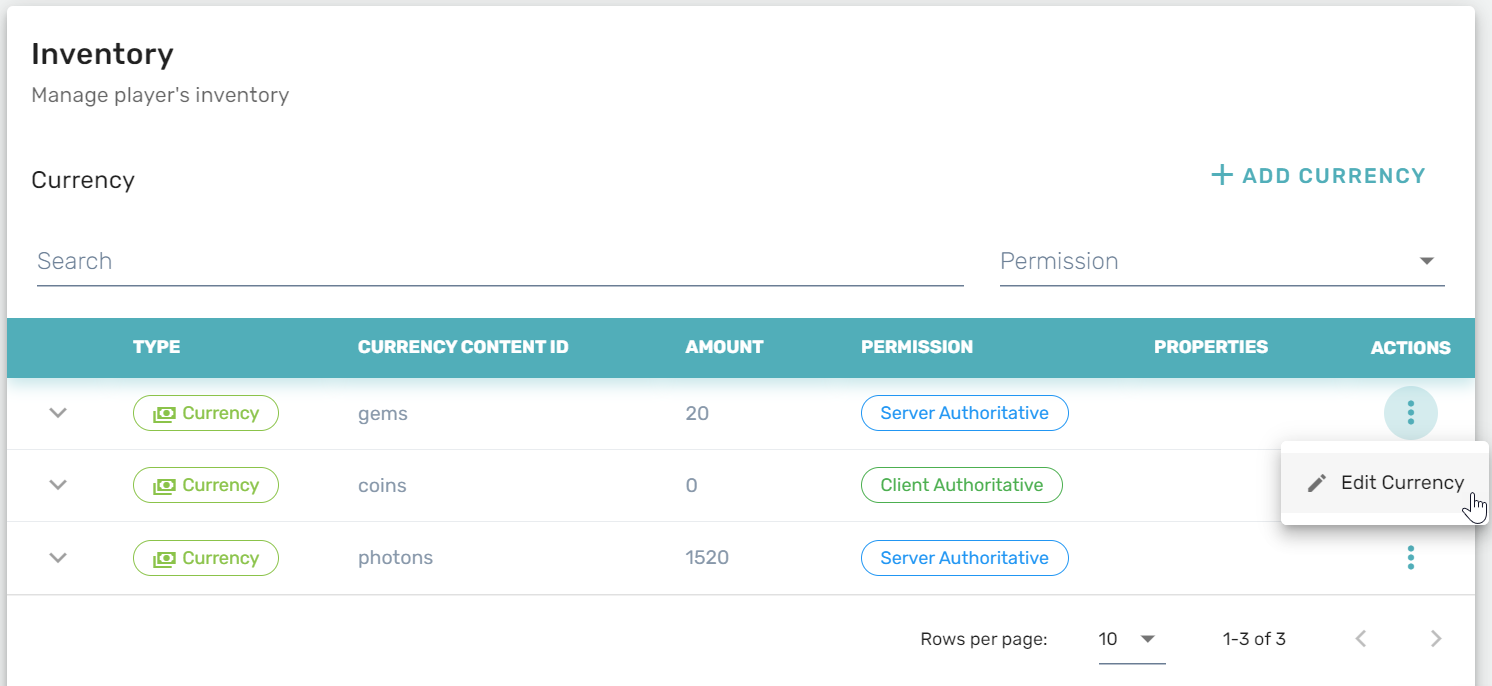
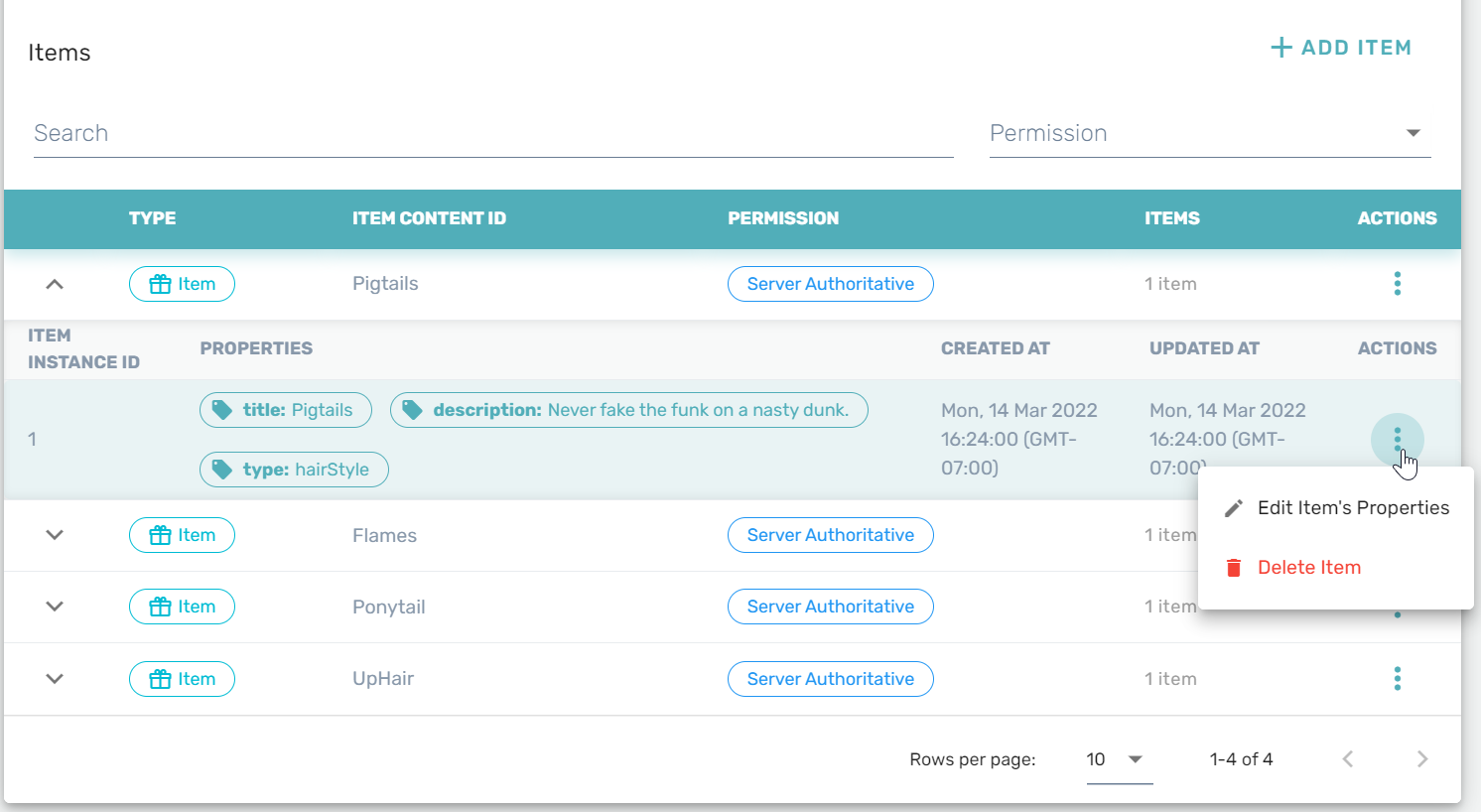
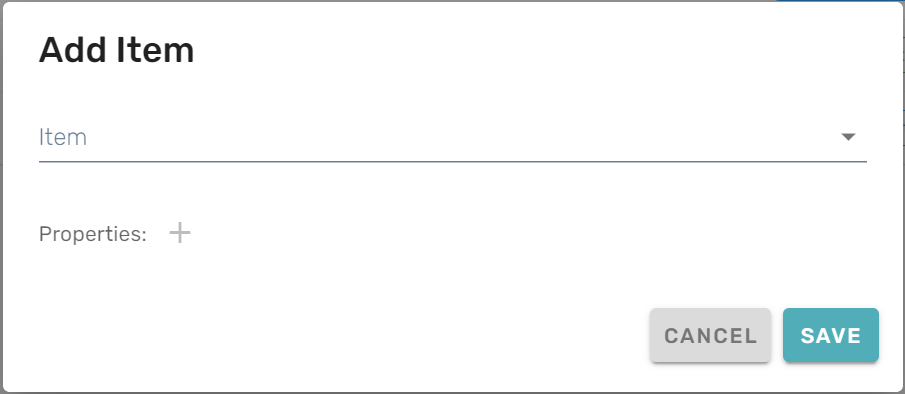
Modifying user inventory
In the Items section, you manage the items in a player's inventory. Click the add item button to grant an item by selecting it from the "Add Item" menu that will pop up. To remove items from a player's inventory, expand an item's details and click Delete Item from the vertical elipses.