Beamball Sample
This demo showcases how you can use the Beamable Unreal SDK's in full game project. Particularly it focus on the Store, Leaderboard, Stats and Matchmaking.
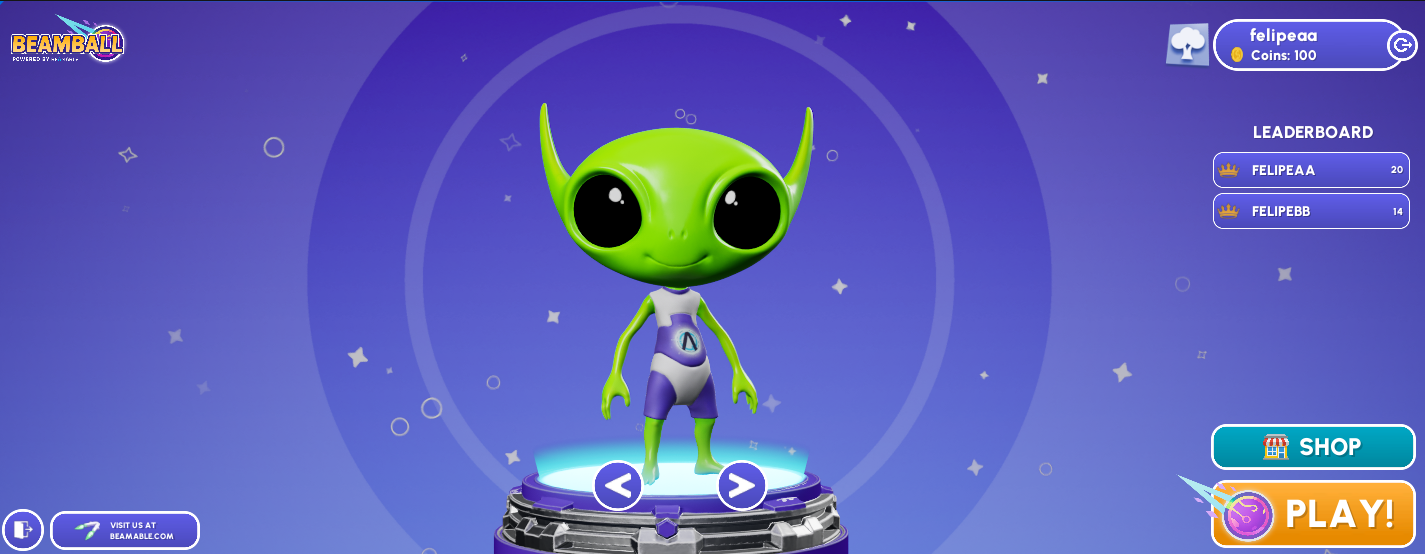
Introduction
Aside from our BeamableCore Plugin, here's what the sample contains:
BEAMPROJ_BeamballUnreal Plugin.: Contains the UE implementation for the sample's client. The core code is insideLiveOpsDemoMainMenu.hand part of the implementation is done through BPs inside the folderUI_BPsfolder of theBEAMPROJ_Beamballproject.Microservice/BeamballMsMicroservice: Microservice containing code that's used by the sample for various matchmaking and stats stuff.
To set up this sample you'll need a a Beamable Account and a Realm. To configure the repo for the sample run dotnet beam unreal select-sample BEAMPROJ_Beamball.
Setting up the Project
To set up an organization and realm to run this sample, follow the steps below.
- Go to the Beamable Portal and create a new Beamable realm called
Beamball - Compile and open the
BeamableUnrealeditor project. - Sign into your Beamable account and go to the
Beamballrealm.- Optionally you can hit
Apply to Buildafter the realm change is done.
- Optionally you can hit
- Let's Setup the Content
- First you will need to run the command
dotnet beam content replace-local --from DE_1885450253346843 --to YOUR_REALM_IDto bring all the content from the sample to your current realm. - Open the
Contentwindow. - Ensure there's an
game_typescontent with the namedefault - Ensure there's an
currencycontent with the namecoins - Ensure there are 4
itemskincontent with the namesskin1,skin2,skin3,skin4 - Ensure there's an
leaderboardcontent with the nameglobal - Ensure there are 3
listingscontent with the namesskin1,skin2,skin3 - Click
Publishto publish those new contents to the realm. - You can read more about the content system Here
- First you will need to run the command
Running the Sample in Editor
Now you're set up to run the sample.
- Open the Unreal editor.
- Go to the
Beamable -> Microservicewindow.- You should see the
BeamballMSservice there. Select it. - Click
Runand wait until you see theService ready for trafficlog line (and the running icon in the Microservice's card to change). - After you're done with the sample, don't forget to come here and stop the service.
- You should see the
- Open the
Beamball_MainScreenLevel if it's not opened yet.- You can find it inside the
BEAMPROJ_Beamball Contentfolder. - If you can't see plugin content in your content browser, you can change the settings of the UE
Content Browserto display it.
- You can find it inside the
- Play the
Beamball_MainScreenin the Editor.
Important Blueprints
The WBP_MainMenu is one of the most important blueprint in the main screen, it contains almost all flows to make the sample work.
Some example of the blueprint:
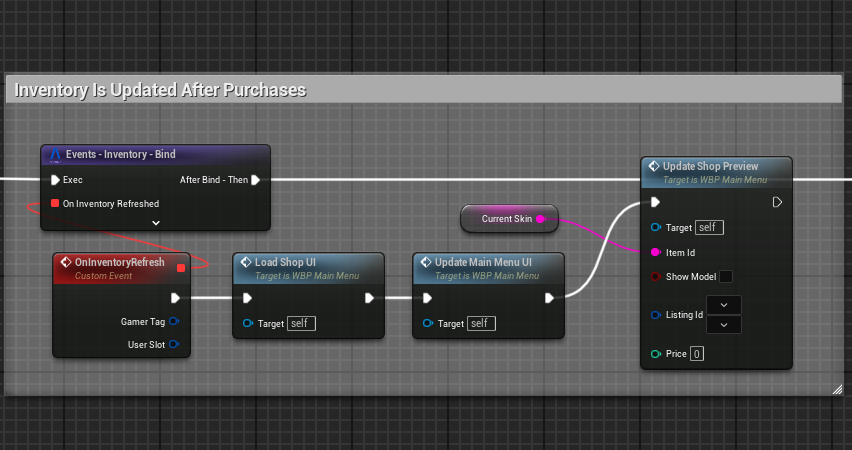 Binding to the inventory subystem to update the UI when it receive a event call.
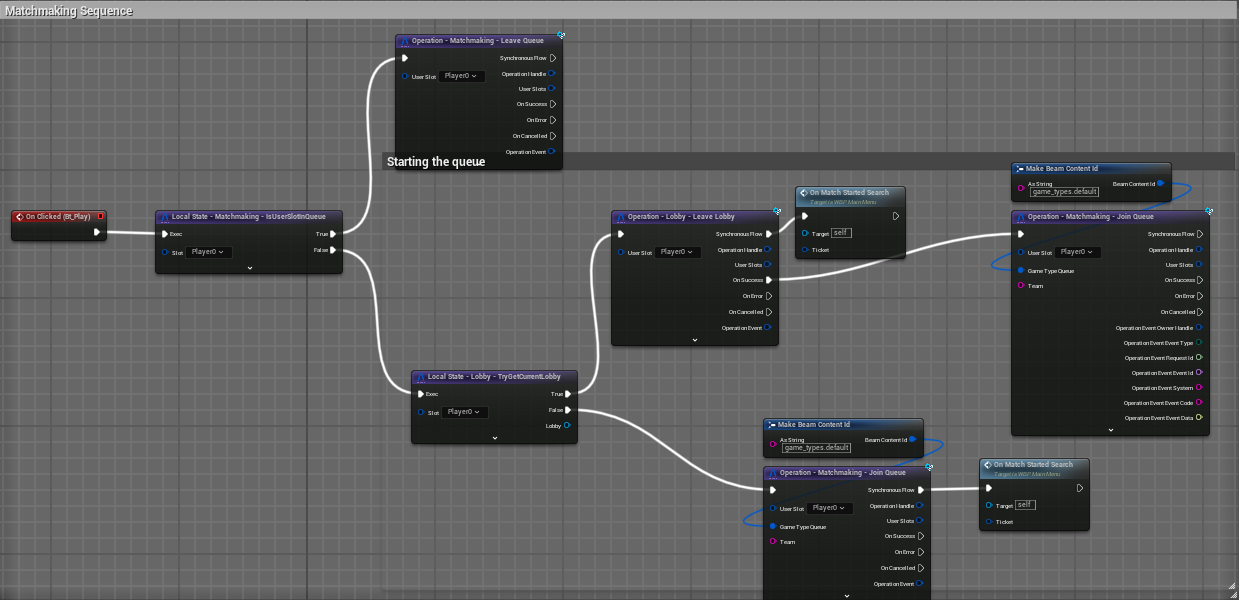 Showing how to handle matchmaking flow
Can I use it as a Template?
This sample is not meant to be used as a template directly, however, its components are free for you to copy and use in your own project. Here's what these are:
- The
BeamballMSMicroservice : located inside Microservice/BeamballMS - Beamable code and blueprints inside BEAMPROJ_Beamball plugin