Microservices
Developing Standalone Microservices with the Beam CLI
Beamable offers a rich microservice development workflow using the Beam CLI and Dotnet. Microservices deploy to the Beamable Cloud, and offer a secure way to handle server-side authoritative logic for your games.
Dependencies
Before you can develop a Beamable Standalone Microservice, you need to complete the Getting-Started Guide. That means having Dotnet 8 installed, and getting the Beam CLI.
You can confirm you have everything installed checking the versions of the tools.
Quick Start
Standalone Microservices require a .beamable workspace, so you either need to create one with beam init, or use an existing one.
Once you have a .beamble workspace, you can create a new Standalone Microservice using the project new command.
A new file, BeamableServices.sln has been created in /MyProject. Open it in your IDE of choice (Visual Studio Code, Rider, or Visual Studio).
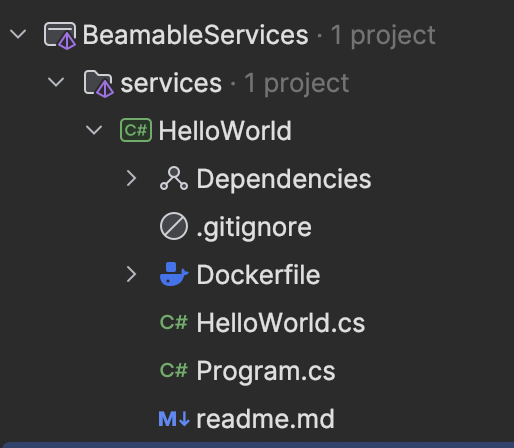
Congratulations, you have a local Beamable Standalone Microservice! To run it, you can use the IDE tooling to start the HelloWorld project, or you can use the project run command. If you're familiar with dotnet, you can also use the normal dotnet run command as well.
However you decide to run the project, you should see a stream of logs similar to the snippet below,
13:25:33.077 [DBUG] Service provider initialized
13:25:33.307 [DBUG] Event provider initialized
13:25:33.308 [INFO] Service ready for traffic.baseVersion=2.0.0-PREVIEW.RC2 executionVersion= portalURL=https://portal.beamable.com/cid/games/DE_1751365810229268/realms/pid/microservices/HelloWorld/docs?refresh_token=redacted&prefix=redacted
The service is running! You can send requests to the service over HTTPS. To verify, you can open the local Open API documentation by using the project open-swagger command.
Your local web browser should open to the Beamable Portal, showing the local Open API documentation,
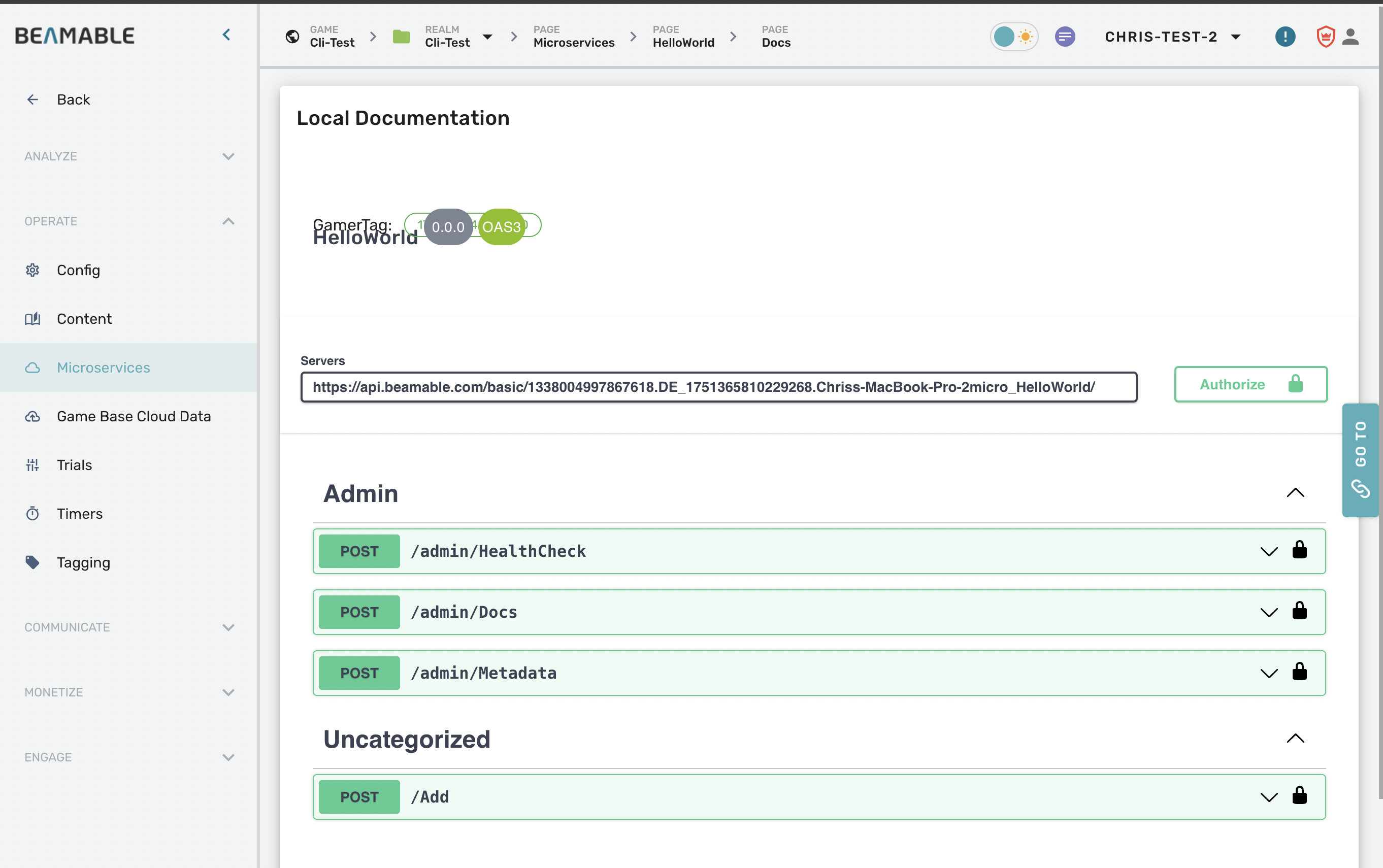
Click on the last green button that says, "POST /Add", and then select the "Try It Out" button. In the Request Body, enter some sample JSON,
The Add function is defined in the HelloWorld.cs file.
using Beamable.Server;

namespace Beamable.HelloWorld
{
    [Microservice("HelloWorld")]
    public class HelloWorld : Microservice
    {
       [ClientCallable]
       public int Add(int a, int b)
       {
           return a + b;
       }
    }
}
You can write new functions and tag them with [ClientCallable] to make them accessible on the Open API page. And now you know the basics of working with Beamable Standalone Microservices!
Project Structure
Each file in the Standalone Microservice has a valuable function that is important to understand.
| file | function |
|---|---|
MyProject/services/.gitignore |
a version control file that will ignore build and intermediate folders from your git based source control |
MyProject/services/Dockerfile |
When the Standalone Microservice is deployed, it will be containerized using Docker. You can modify the Dockerfile to extend the capabilities of the service. See the Deployment Section for more details |
MyProject/services/HelloWorld.cs |
This file is the main .cs file that has your server functionality |
MyProject/services/Programcs |
This file is the entry point of the dotnet application. It bootstraps the server and starts it. You may edit it, but make sure not to remove the section that enables the service. |
MyProject/services/HelloWorld.csproj |
This file is the dotnet project file for your service. You can modify the .csproj file to customize your service. See the Microservice Configuration Section section for more details |
MyProject/BeamableServices.sln |
This file is the dotnet solution file, and organizes your services. If you add additional services or storage databases, they will be tracked through the .sln file. |
Next Steps
There are many topics to continue learning about Beamable Standalone Microservices,
- Deploy your Microservice to the Beamable Cloud
- Debugging Techniques
- Add a Beamable Database Storage Object
- Microservice Configuration Settings
- Beam CLI Commands for Managing Microservices
- Microservice Routing and Client Usage